GenBatch is a bulk AI image generator for people who need many outputs at once. If you have 100 prompts, product variants, thumbnails, scene images, or B-roll stills, the right workflow is not to paste the same way 100 times. The right workflow is a batch.
The simple version: use ChatGPT or Claude to prepare the prompt list, run the list in GenBatch Bulk Visuals, then review and download the full set.
Best workflow
- Write or generate a prompt list with one row per image.
- Keep style rules consistent across the rows so the set looks coherent.
- Paste the list into GenBatch Bulk Visuals or import a CSV-style file.
- Submit the batch and let the queue process the rows.
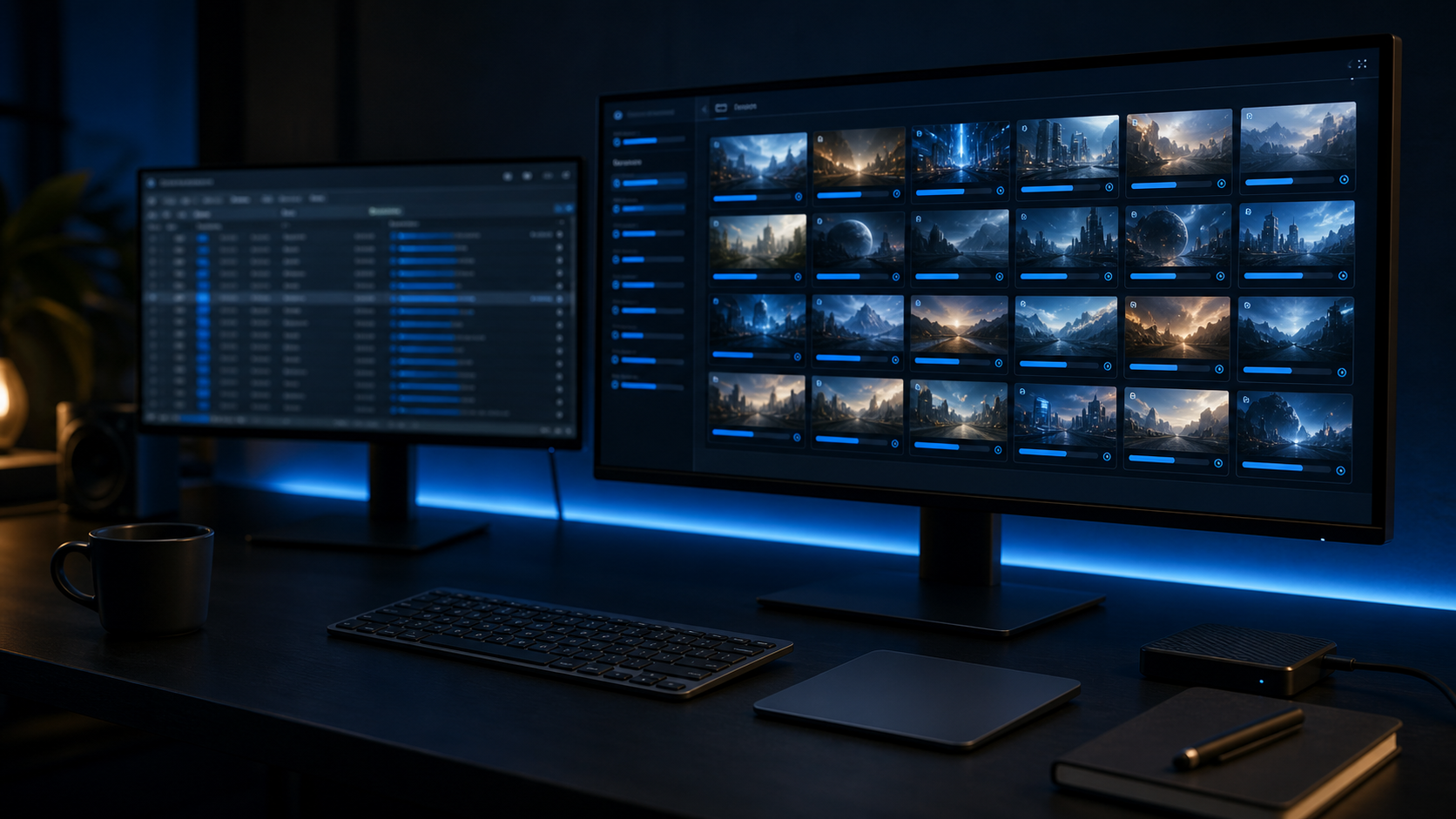
- Review the finished images, retry weak results, and download the set.
This is the main difference between a normal image generator and a batch image generator. Chat-first tools are good for one image at a time. GenBatch is designed for the moment when the work becomes a list.
What to put in your prompt list
For 100 images, consistency matters more than clever wording. Use a repeatable row structure:
| Column | What it should contain |
|---|---|
| ID | A short label like scene-01 or thumb-17 |
| Subject | The main person, product, object, or scene |
| Style | Shared look across the whole batch |
| Aspect ratio | Usually 16:9 for YouTube or 1:1/4:5 for social |
| Prompt | The final image prompt |
| Copies | Optional variants per prompt |
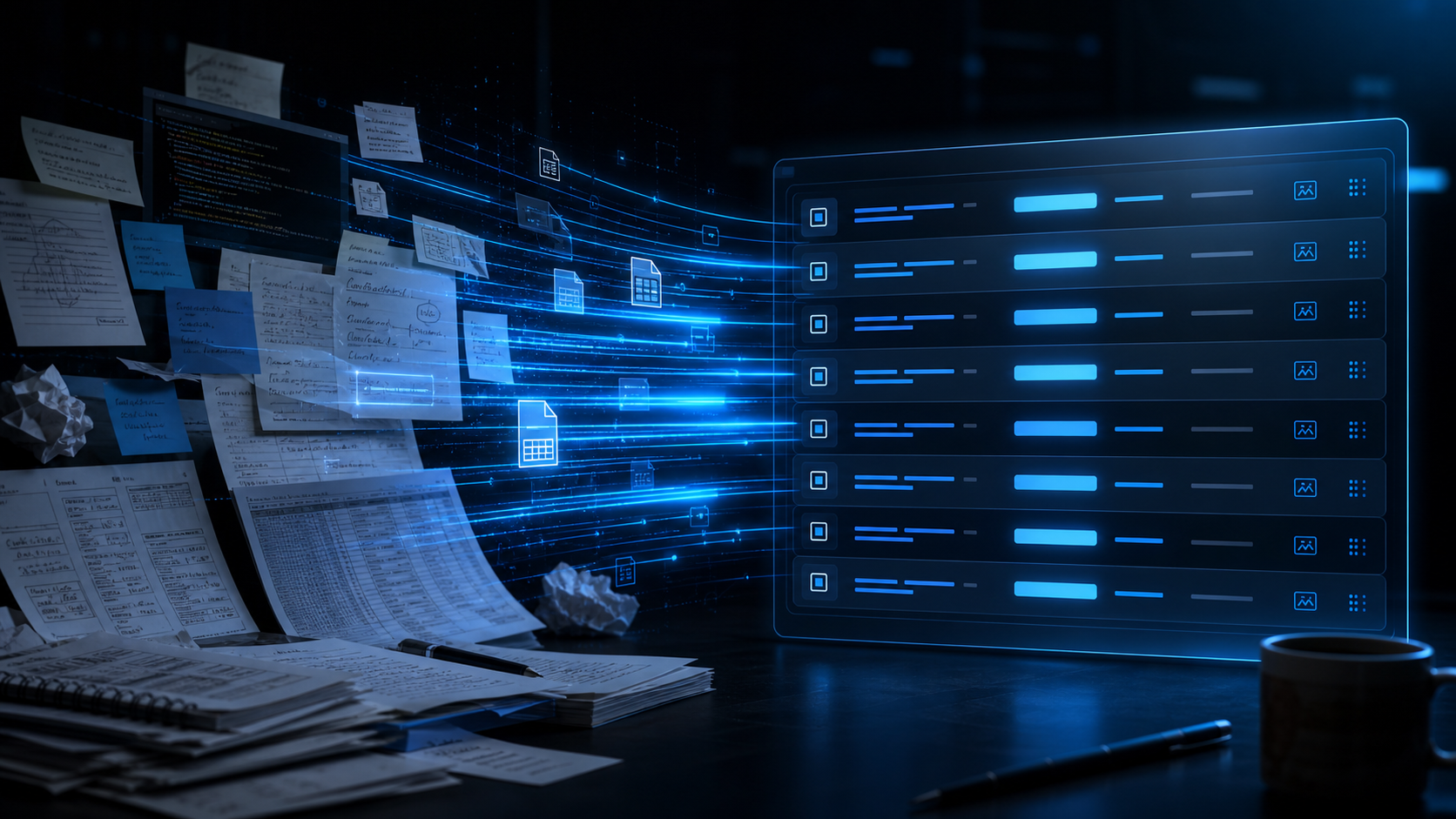
If you are starting from rough notes, ask ChatGPT or Claude to turn those notes into this table.
Example prompt for ChatGPT or Claude
Create 100 image prompts for [project].
Return a table with columns: id, subject, aspect_ratio, prompt, copies.
Keep the same visual style across all prompts.
Each prompt should be ready for bulk AI image generation.
Avoid duplicate scenes.
After the model gives you the table, scan for repeated rows, vague subjects, or missing style instructions. Then paste the cleaned list into GenBatch.
Why not generate one by one?
One-at-a-time generation creates unnecessary manual work:
- You have to paste every prompt separately.
- You lose track of which prompts are finished.
- You need to download and rename files manually.
- Failed attempts interrupt the whole session.
- The set becomes inconsistent because each prompt is handled in isolation.
Batch generation keeps the job organized. The list is the project plan, the queue does the repetitive work, and the results page becomes the review surface.
GenBatch vs API vs chat image tools
| Need | Best fit | Why | |---|---|---| | 1 hero image with back-and-forth edits | ChatGPT, Gemini, or another chat image tool | Conversational editing is the main feature | | 100 images from a prompt list | GenBatch | Built around prompt lists, batches, review, and download | | Generation inside your own product | API provider | You control the backend and product integration | | A one-off art exploration session | Midjourney-style tools | Good for manual creative direction |
Use the tool that matches the workflow. For 100 rows, the workflow problem matters as much as the image model.
Quality tips for a 100-image batch
- Start with 10 test prompts before running the full list.
- Keep style, lighting, lens, and composition rules consistent.
- Use descriptive IDs so review and download are easier.
- Add copies only where you actually want variants.
- Separate experimental prompts from production prompts.
For a broader comparison, read the best bulk AI image and video generators.
Generate the whole image list
Paste or import your prompt list into GenBatch Bulk Visuals and run the batch in one workflow.
See Pricing