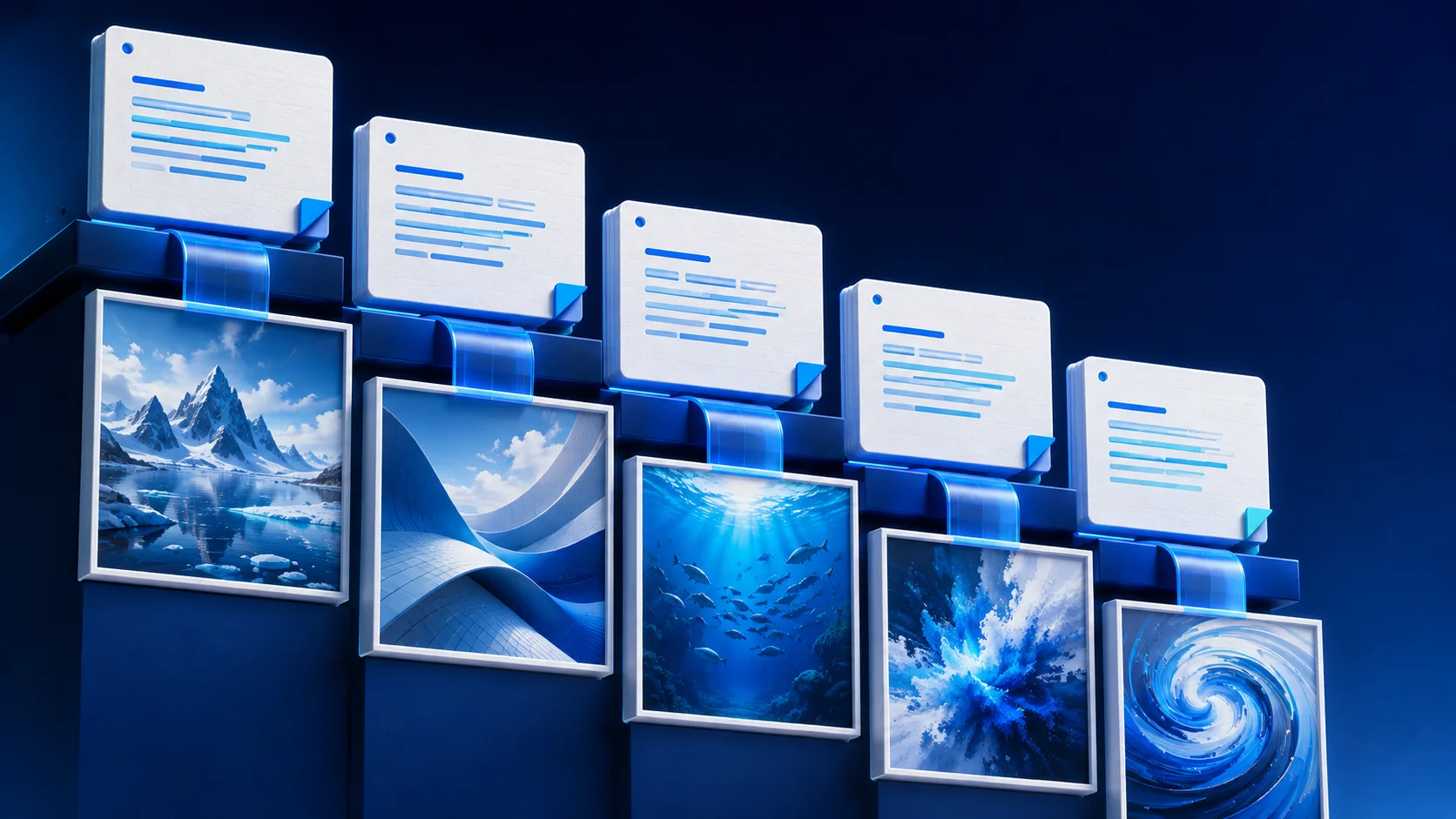
You paste a script into a batch generator and expect clean prompts. Then the tool reads three paragraphs as one item, merges two scenes, drops the motion line, or pairs the wrong prompt with the wrong image.
That isn't a creativity problem. It's a formatting problem. An AI prompt formatter for batch generation exists to turn messy source text into the exact structure the batch page expects.
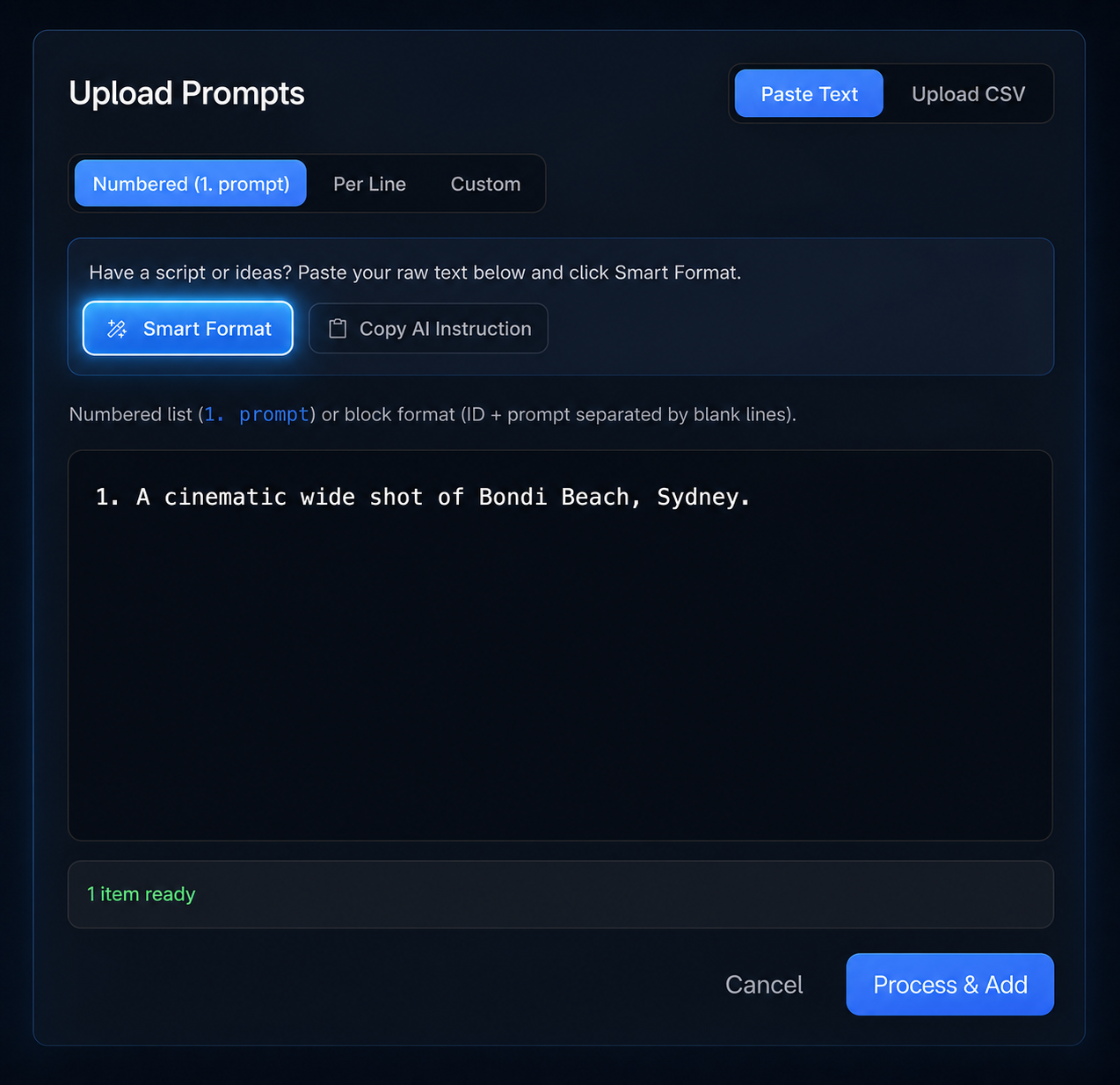
In GenBatch, that feature is called Smart Format. It sits inside the paste flow on the batch pages, so you don't have to bounce between ChatGPT, a spreadsheet, and a CSV validator just to get prompts into the right shape.
Why Batch Prompts Break When You Copy Them by Hand
Most AI prompt mistakes are boring. A missing line break. A comma in the wrong CSV cell. A video prompt pasted where an image prompt should go. A story outline that reads fine to a human but gives the batch parser nothing reliable to split on.
One prompt at a time hides those mistakes. Batch generation exposes them.
If you're making 5 images, manual cleanup is fine. If you're turning a script into 60 images, 60 motion prompts, or a mixed A-roll and B-roll shot list, the setup work becomes the job. We see the same pattern in creator workflows outside GenBatch too: people ask ChatGPT or Gemini to make prompt lists, then spend the next 20 minutes making those prompts acceptable for the tool they actually use.
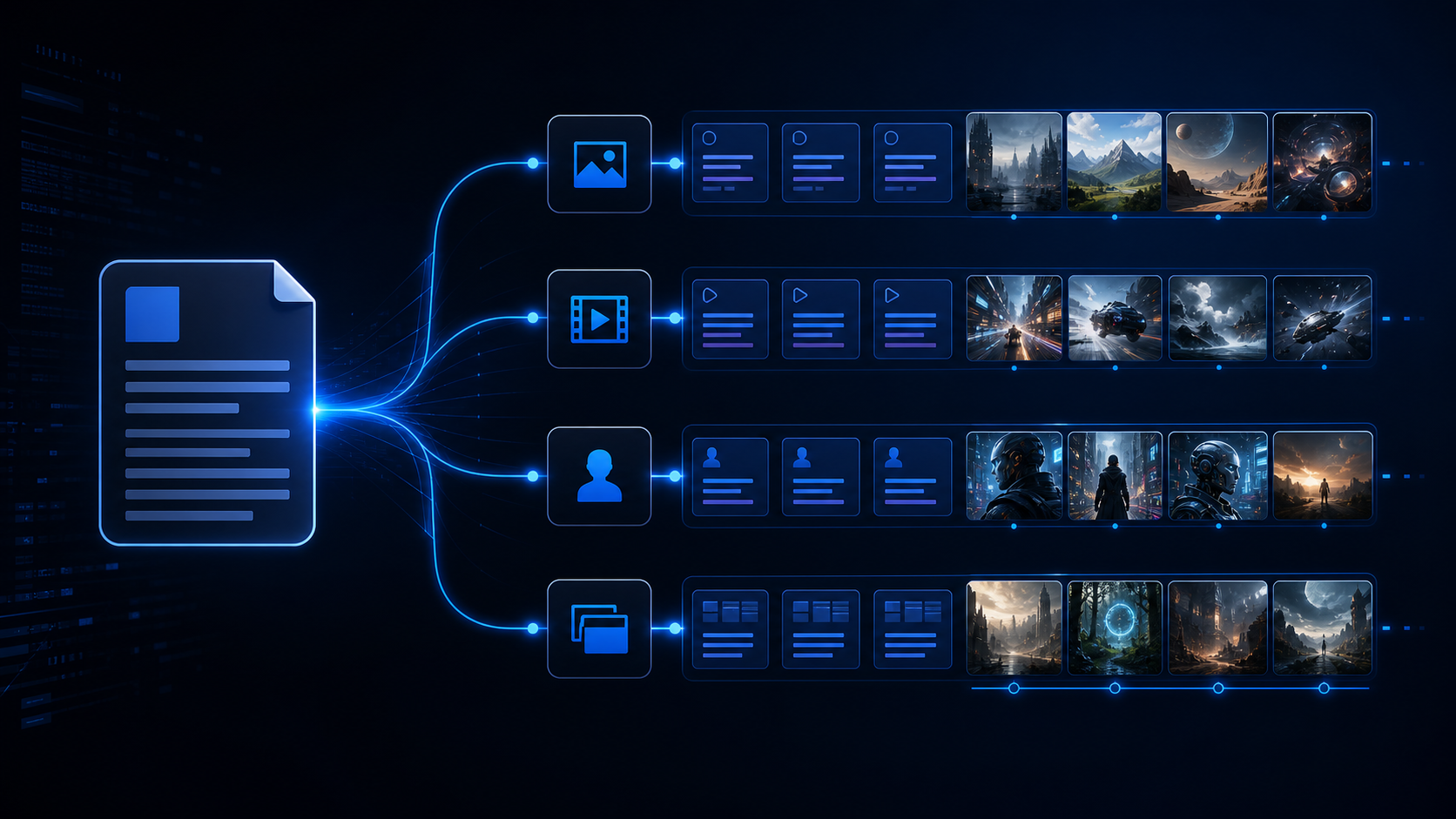
The key detail is that every batch page wants a slightly different shape. Bulk image prompts can be one item per line. Text-to-Scene needs a still-image prompt and a motion prompt. Avatar clips need action, expression, and sometimes spoken text. Full Story Gen needs the shot type before the prompt.
So the problem isn't "write better prompts." It's "transfer the prompts without breaking their structure."
Format prompts where you generate
Paste scripts, notes, or rough ideas into GenBatch and use Smart Format before adding them to a batch.
Open Bulk VisualsWhat an AI Prompt Formatter Does in GenBatch
An AI prompt formatter for batch generation converts raw text into batch-ready prompt text. In GenBatch, Smart Format reads the current batch page, applies that page's format rules, and returns text the preview can split into separate items.
The important part is restraint. Smart Format is instructed to preserve ready-to-use prompts exactly when the input is already a prompt list. It shouldn't "improve" prompt wording just because it can. It should format.
When the input is not already a prompt list, Smart Format does more work. A script can become visual scene prompts. A rough video idea can become paired still-image and motion prompts. A story outline can become A-roll and B-roll blocks.
Under the hood, the API supports numbered lines, one prompt per line, and custom separators. The UI exposes those choices in the paste modal for simple prompt lists. For batch types with custom structure, like Full Story Gen, GenBatch uses that page's parser instead of generic delimiters.
This is the practical difference between Smart Format and a generic prompt improver. A generic tool gives you nicer prose. Smart Format gives you text that the batch page can ingest.
How to Use Smart Format for Batch Generation
The workflow is short. The part that matters is reviewing the preview before you add the items.
Open the right batch page
Use Bulk Visuals for image batches, Text-to-Scene for image plus video pipelines, Avatar Video for clips from a reference frame, or Full Story Gen for mixed A-roll and B-roll batches. If you're starting with uploaded images, use Animate Uploads and keep the filename matching rules tight.
Open the paste flow
Click the paste or upload prompts action on the batch page. If the page supports CSV import too, stay on the Paste Text tab unless you already have a spreadsheet.
Paste your source text
This can be a clean prompt list, a loose script, bullet notes, a product list, or a scene outline. If your text is already polished, don't ask Smart Format to rewrite it. Let it preserve the wording and fix only the structure.
Choose the format mode when shown
Numbered format is the safest default because it gives the preview clear item boundaries. Newline mode is useful for simple one-line prompts. Custom separators are better when a single prompt spans several lines.
Click Smart Format and inspect the preview
Check item count, prompt boundaries, IDs, and paired fields. If you expected 40 items and the preview shows 12, stop there. Fix the source text or change the delimiter before adding anything.
Add the items, then run a small test
For large batches, run a small sample first. Once the style and parser behavior look right, scale the list up to the full batch.
Don't use Smart Format as a prompt-polishing button after you've already written final prompts. Use it as a transfer tool. The less it changes good prompt wording, the easier it is to debug results later.

Smart Format vs CSV Prompt Workflows
Smart Format and CSV import solve different problems. Treat them like two tools in the same drawer.
Use Smart Format when your source is messy but the final structure is simple enough for the paste flow. Use CSV when each row needs metadata: id, prompt, copies, image_prompt, video_prompt, or filename matching.
For image generation, CSV is useful when you care about download names. Bulk Visuals accepts prompt rows and copy counts, and GenBatch caps the batch at 200 items. Each image generation costs 1 credit.
For video generation, CSV gets more valuable because the prompt data has more moving parts. Text-to-Scene can use separate image and video prompts, with copies from 1 to 4. Video generations cost 2 credits, so I prefer CSV for anything where a row mismatch would waste review time.
If you're new, start with Smart Format. When the batch has real production naming needs, move to CSV.
Prompt Transfer Examples for Images, Videos, Avatars, and Stories
Smart Format is page-aware. That sounds small, but it's the whole point.

Bulk Visuals
Bulk Visuals is the simplest case. Paste a script, product list, mood board notes, or a rough set of image ideas. Smart Format turns it into separate image prompts.
If the input already contains finished prompts, Smart Format is instructed to preserve the exact wording. If the input is a story or script, it breaks the text into visual scenes and adds image-focused details like style, lighting, composition, mood, and camera angle.
This pairs naturally with the batch AI image generation guide, especially when you're moving from "I need 50 visuals" to a list the generator can actually process.
Text-to-Scene
Text-to-Scene has more structure. Each item needs a still-image prompt, and it can also include a video or motion prompt. Smart Format can output the combined pattern as:
1. Image prompt | Video prompt
2. Image prompt | Video prompt
That pipe matters. It tells the page where the still image prompt ends and where the motion instruction begins.
If your input only describes the visuals, Smart Format can derive reasonable camera movement: slow push-in, pan, dolly, pullback, tilt, or subject motion. Still, don't accept motion blindly. A beautiful still prompt can become a dull clip if every row says "slow zoom."
For a broader video workflow, pair this with how to generate multiple AI videos at once.
Avatar Video
Avatar prompts need action and delivery. A useful prompt doesn't only say "person talks about the product." It tells the model about posture, expression, gesture, emotional tone, and spoken content.
Smart Format supports [VOICEOVER]: style prompting for spoken text. That makes it easier to paste a script and get multiple avatar clips instead of one long, uncut talking-head prompt.
Keep these clips short and specific. One idea per row. Avatar batches get much easier to review when each item has a clear purpose: intro, objection, proof point, CTA, outro.
Full Story Gen
Full Story Gen needs shot type labels. Smart Format outputs blocks like:
1 aroll
A person speaks directly to camera...
2 broll
Cinematic cutaway of the product...
That format is different from a numbered prompt list. The first line identifies the item and shot type. The prompt lives underneath it. Blank lines separate blocks.
This is the feature to use when you have a full script and want GenBatch to split it into talking-head and cutaway shots. Smart Format won't make the story good by itself, but it removes the mechanical work of turning a script into batch items.
Common Mistakes When Formatting Batch AI Prompts
The first mistake is trusting the output count without looking at the preview. If you paste 30 scenes and get 18 preview items, the batch is already wrong. Don't run it and hope the model figures it out.
The second mistake is mixing formats. A numbered list, a CSV, and a paragraph outline can all be valid on their own. Mixed together, they're usually parser bait.
The third mistake is using Smart Format when you need exact ID matching. Direct Animate Uploads is the exception in GenBatch's paste flow because the prompt has to match uploaded images. The safe route there is CSV or manual prompt entry where IDs and filenames stay under your control.
And the fourth mistake is over-formatting. If your prompt list is already excellent, the best formatter is a boring formatter. It should keep the words and fix the boundaries.
A Good Smart Format Workflow
For real batches, I like this sequence:
- Draft the source material in plain text.
- Use Smart Format on the correct GenBatch page.
- Check that the preview count matches the expected item count.
- Scan the first five and last five items.
- Run a tiny batch.
- Scale only after the test results make sense.
That last step saves more time than any prompt trick. Batch generation is powerful because it multiplies your setup. If the setup is wrong, it multiplies the mistake too.
If you're building prompt lists from scratch, the older workflow still works: use ChatGPT or Claude to create the list, then import it into GenBatch. The AI image prompts for batch generation guide covers that path in detail.
Smart Format is better when you already have source material and don't want the extra handoff. Paste the raw text, format it in place, review the preview, and generate.
Turn rough text into batch prompts
Use Smart Format in GenBatch to prepare image, video, avatar, and story batches without cleaning every prompt by hand.
View Day Passes