A major beverage brand recently created 50 localized video ads in a single afternoon. That same job used to take a production team weeks. The difference wasn't a better camera or a bigger budget. It was batch AI video generation.
Most AI video tools still force you to work one video at a time. Type a prompt, wait 30-90 seconds, download the result, type another prompt. Generating 50 videos this way means 50 separate sessions, hours of manual work, and a lot of tab-switching. It doesn't have to be that way.
Why Single-Video Workflows Don't Scale
The math is brutal. Say you're generating product videos for an ecommerce catalog with 40 items. On a typical platform, each video takes about 60 seconds to generate, plus time to type the prompt, choose settings, and download the result. Call it 3 minutes per video including overhead.
That's 2 hours of focused, repetitive work. And you haven't started reviewing results, tweaking prompts for the ones that didn't turn out right, or re-generating failures.
Context-switching makes it worse. Every time you alt-tab to check a finished video, you lose focus on the next prompt. Professional creators report that bulk AI video generation projects take 3-4x longer when done one at a time compared to batched workflows. The bottleneck isn't the AI. It's the human sitting in front of it.
There's also the subscription cost problem. If your project needs both Veo 3.1 (for cinematic quality) and Kling (for character consistency), you're paying two separate monthly subscriptions just to access both models. Those credits don't transfer between platforms, and unused credits expire at the end of the month. The best AI video generators are all subscription-based when accessed directly. Batch processing on a pay-per-use platform avoids all of that.
3 Ways to Generate Multiple AI Videos at Once
There are three real approaches to batch video generation in 2026. Each suits a different type of user.
CSV Batch Uploads
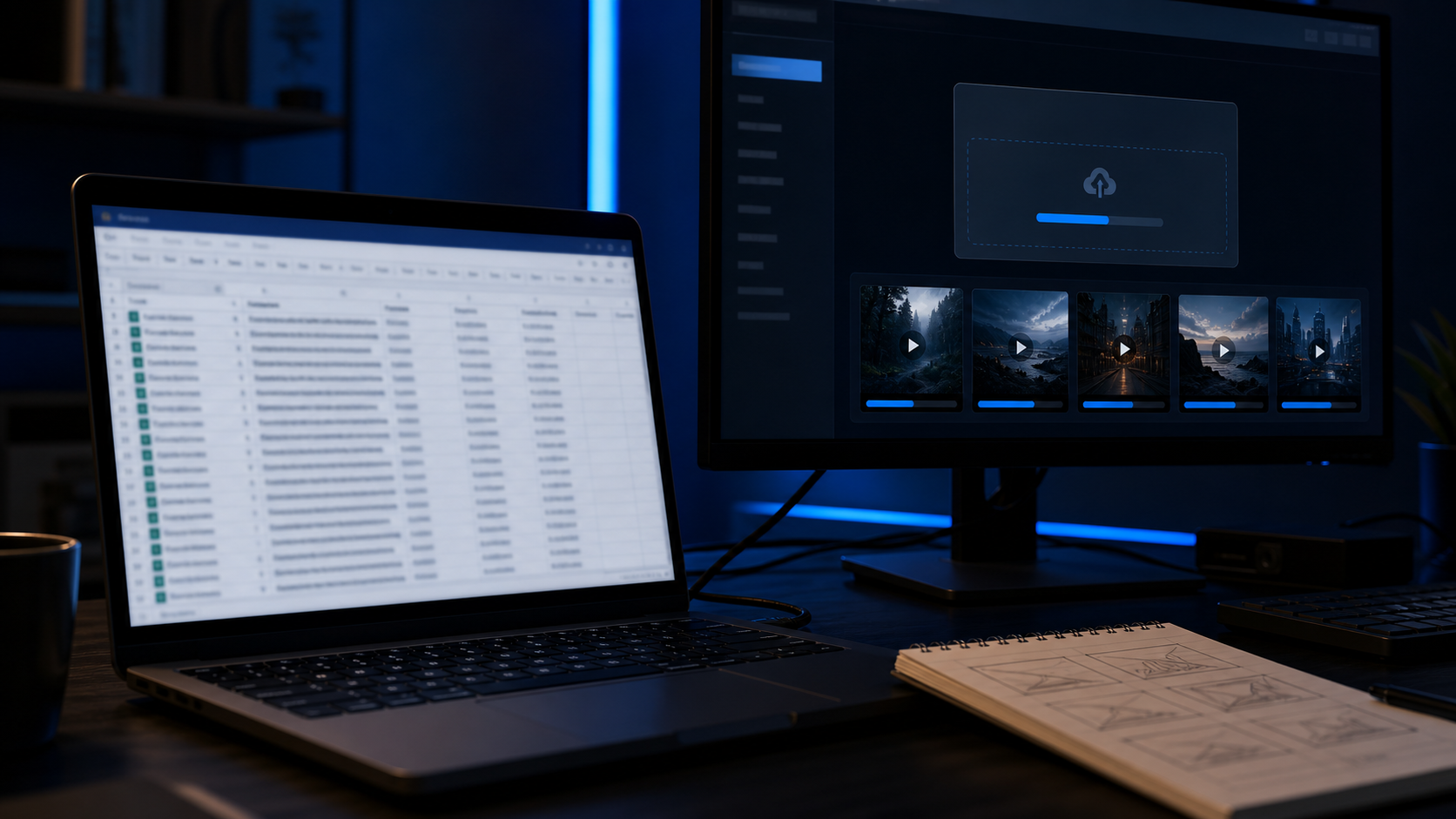
The most accessible option. GenBatch lets you upload a CSV file with all your prompts, then processes the entire batch through a queue. You write your prompts in a spreadsheet (or have ChatGPT generate them), upload the file, and hit submit.
The system queues every item, processes them in parallel where possible, and delivers results as they complete. You can mix text-to-video and image-to-video prompts in the same batch. Failed generations retry automatically, and you're only charged for successful outputs.
No code required. No API keys. Just a spreadsheet and a few clicks. For teams producing social media content, product videos, or marketing assets, this is the fastest path from "I need 50 videos" to "they're all done."
All-in-One Platforms
Platforms like OpenArt and Weevi bundle 100+ AI models under one subscription. They don't offer true batch processing, but they do let you access multiple models without switching accounts.
Weevi stands out with node-based workflows: you build a visual pipeline (text prompt, style image, compositor, video generator) and swap out individual inputs to create variations. It's more efficient than manual one-at-a-time generation, but still requires hands-on interaction for each video.
OpenArt's approach is similar. One dashboard, many models, shared credit pool. Good for variety, but not designed for high-volume batch production. You're still clicking "generate" for each video individually.
Both platforms run on monthly subscriptions starting around $45/month. So while they solve the multi-model problem, they don't solve the batch workflow problem or the subscription commitment problem.
API Automation
For developers, API platforms like fal.ai and Creatomate offer the most flexibility. Write a script that sends prompts programmatically, handles callbacks, and downloads results automatically. Creatomate specifically supports spreadsheet-to-video pipelines with template-based rendering.
The trade-off is clear: maximum automation, but you need engineering skills. fal.ai charges $0.20-0.50 per second of video generated, with no batch discounts. An 8-second Veo 3.1 video costs about $3.20 through their API. Creatomate works with templates rather than generative AI models, so the output is more structured but less creative. There are also Chrome extensions like Flow Automator and KlingGen that automate bulk generation on existing platforms, but they're hacky browser automation tools that can break when the platforms update.
Step-by-Step: Batch Generate 50 Videos with CSV

Here's the exact workflow for generating multiple AI videos at once using a CSV batch upload on GenBatch.
Prepare your prompts
Create a CSV file with one prompt per row. Each row needs at minimum a prompt column. You can also specify aspect ratio, model preferences, and number of copies. If you don't want to format the CSV manually, use GenBatch's AI prompt formatter. Copy the formatter prompt into ChatGPT or Claude, describe what you want, and the AI outputs a ready-to-upload CSV.
Choose your generation mode
Navigate to the batch page that matches your content type. Text-to-Scene for prompts that generate videos from scratch. Animate Uploads if you're starting from existing images. Bulk Visuals for image-only batches that you might animate later.
Upload and configure
Click the CSV import button, upload your file, and verify the preview looks correct. Choose your quality settings and model. GenBatch supports mixing different generation types in the same batch, so your CSV can include both images and videos.
Submit and wait
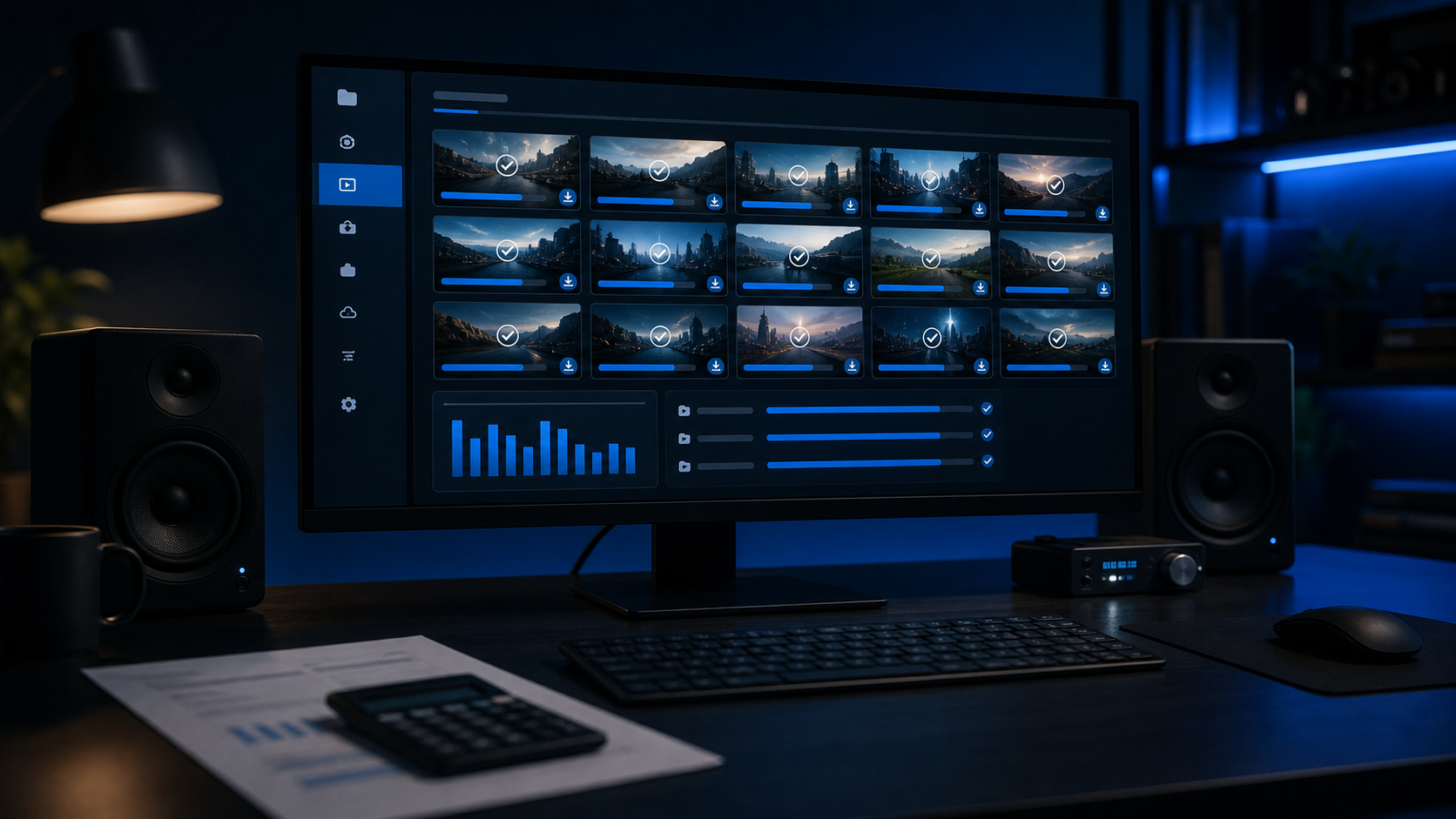
Hit submit. The batch enters the processing queue. Each item generates independently, so completed results appear as they finish rather than all at the end. You can close the browser and come back later. The results page shows progress in real time.
Review and download
Once complete, review all results on the batch results page. Download individual files or the entire batch. Any failed generations can be retried individually. Credits are only deducted for successful outputs, so failures don't cost you anything.
Ready to batch generate?
Upload a CSV with up to 200 prompts and generate them all in one submission.
Get StartedPro Tips for Better Batch Results
Generating multiple AI videos at once is only useful if the results are good. Here are techniques that professional creators use to get better output from batch workflows.
Start cheap, finish premium. Don't burn expensive model credits on first drafts. Use Seedance or Kling 2.5 for rapid concept testing. Seedance generates a 5-second HD clip in under 41 seconds at roughly 4x less cost than premium models. Once your prompt is dialed in, switch to Veo 3.1 or Sora 2 for the final render.
Use the image-to-video pipeline. Instead of going straight from text to video, generate a static image first. Get the composition exactly right using an image model like Nano Banana Pro. Then animate that specific image. This gives you much more control over the final result and wastes fewer video credits on compositions that don't match your vision.
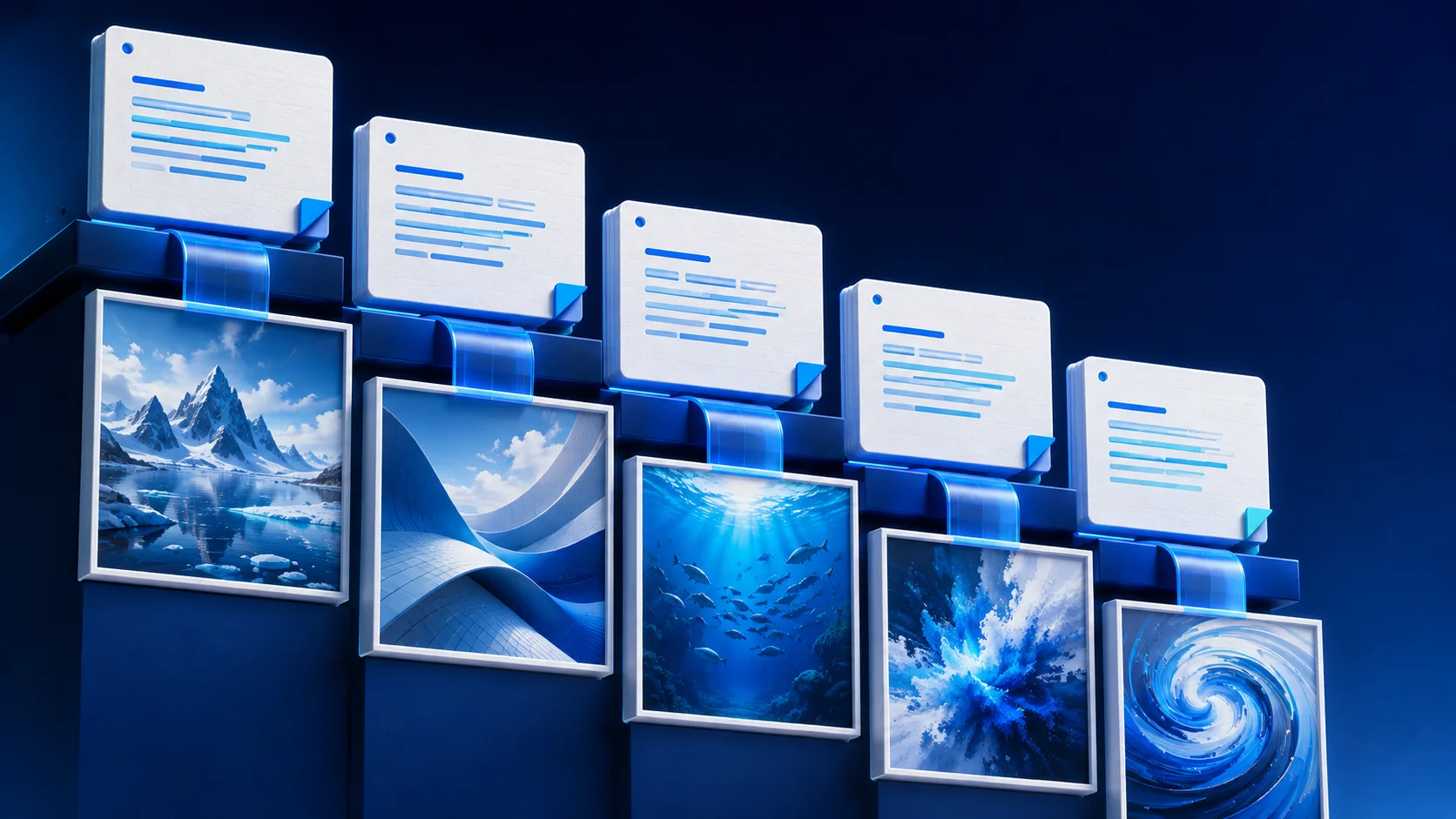
Write prompt variations, not duplicates. When batching 50 videos, don't submit 50 identical prompts hoping for variety. Instead, create deliberate variations. Change camera angles, lighting conditions, or scene details across your prompts. This gives you genuinely different outputs to choose from rather than 50 slightly-different takes on the same shot.
Match the model to the task. Not every video in your batch needs the most expensive model. Product showcase clips work fine on Kling 2.5 at a quarter of the cost. Save Veo 3.1 for hero content where cinematic quality actually matters. GenBatch lets you specify different models per row in your CSV, so a single batch can use cheap models for simple shots and premium models for key scenes.
Set up a review workflow. With 50+ results landing at once, you need a system. Name your prompts descriptively in the CSV so you can quickly identify which output goes where. Review outputs in order of importance: hero shots first, supporting content second. Re-generate only the failures rather than re-running the entire batch.
Include 2-3 "test" prompts at the top of your CSV batch. These should be your most complex or unpredictable prompts. Review their results first. If they look good, you know the rest of the batch will likely turn out well. If they don't, adjust your approach before wasting credits on the remaining 47 prompts.
When Batch Processing Saves Real Money

The cost advantage of generating multiple AI videos at once becomes dramatic at volume. Here's what the numbers look like for a 50-video project:
Manual approach on subscription platforms: 50 individual generations across 2-3 tools. Minimum $85/month in subscriptions (Sora + Flow + Kling). Plus 2+ hours of manual work. And you're still paying next month even if you don't generate anything.
GenBatch CSV batch: One Pro day pass ($5). Upload CSV, submit, wait. Total cost: $5 for 50 videos (150 credits used out of 250). That's $0.10 per video. And you've got 100 credits left over for images or re-generations.
API route (fal.ai): 50 videos at $1.60-3.20 each = $80-160 total. Plus the engineering time to build and maintain the automation. Only worth it if you're generating thousands of videos per month and already have the infrastructure.
The pay-per-use model combined with batch processing is where the real savings happen. You're not paying for idle months, wasted credits, or manual labor. Just results.
And the time savings are just as significant. Manually generating 50 videos takes 2+ hours of active work. A CSV batch upload takes about 5 minutes of setup, then you walk away while the queue runs. That's not a marginal improvement. It's a fundamentally different workflow.
50 videos for $5
One Pro day pass. One CSV upload. Done. Founding pricing -- 50% off for first 500 users, ends May 31.
Try GenBatch