Writing 30 unique image prompts by hand gets old fast. By prompt number 12, you're running out of ideas. By prompt 25, everything starts sounding the same. We've been there.
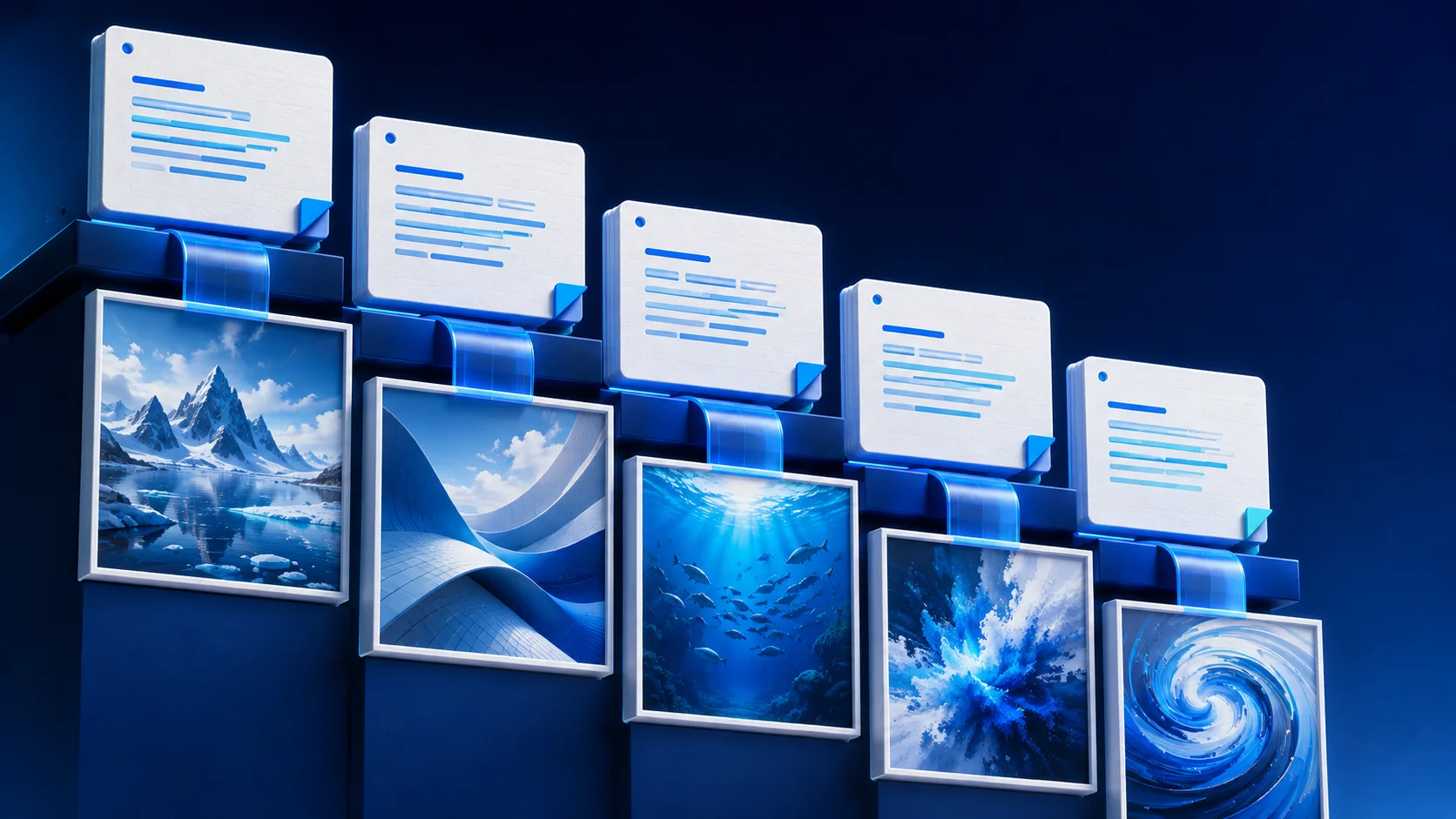
Here's a better approach: let AI write the prompts for you, then batch-generate all the images at once. The whole process takes about 5 minutes for 30+ images.
Why Let AI Write Your Image Prompts
The obvious reason is speed. ChatGPT or Claude can produce 50 detailed image prompts in under a minute. But speed isn't even the best part.
Consistency is the real win. When you write prompts manually, your style descriptions drift over time. Prompt 1 says "studio lighting, white background." Prompt 15 says "bright, clean look." They mean the same thing, but the AI image generator treats them differently. An AI writing all your prompts at once keeps the style keywords identical across every single prompt.
Then there's creativity. Ask Claude to write 20 variations of "product photo of a leather wallet" and it'll come up with angles and compositions you wouldn't have thought of. Overhead shots, close-ups on stitching, lifestyle contexts. Way more varied than what we tend to produce when we're grinding through a list manually.
Step-by-Step: From AI to Finished Images
Gather your source material
Start with whatever you're working with. Product photos, screenshots, mood boards, a rough text description of what you need. The more context you give the AI, the better your prompts will be.
For example, if you're generating product images for an e-commerce store, drop a few existing product photos into Claude or ChatGPT. Tell it: "I need images in this style."
Copy the AI prompt from GenBatch
Go to Bulk Visuals in GenBatch. You'll find a built-in AI prompt that's designed to be copied straight into ChatGPT, Claude, or any other AI assistant.
This prompt tells the AI exactly how to format its output so GenBatch can read it. No manual CSV formatting needed. Just copy, paste into your AI tool, add your specific requirements, and the AI outputs prompts in the exact format the site expects.
Generate prompts with AI
Paste the GenBatch prompt into ChatGPT or Claude. Add your own requirements: subject matter, style, how many prompts you want. Hit enter.
The AI spits out a formatted list of prompts. Something like:
prompt,copies
"Professional product photo of leather wallet on marble surface, studio lighting, 4K",2
"Close-up of wallet stitching detail, shallow depth of field, warm tones",2
"Flat lay arrangement with wallet, keys, and coffee, overhead shot, minimal",2
Each line is one prompt. The copies column tells GenBatch how many variations to generate per prompt.
Import and configure your batch
Back in GenBatch, paste the CSV output or import the file. Set your aspect ratio and any other preferences.
The CSV import is flexible with column names. You can use text or prompt for your prompts, and count or copies for the number of variations. GenBatch recognizes all of these automatically.
Submit and download
Hit submit. For large batches, set up a notification through Discord, email, or Telegram so you don't have to watch the progress bar.
In our experience, 30 images typically finish in about 2 minutes. Once done, you can preview everything on the Results page or download the whole batch as a single ZIP file.
Tips for Better AI-Generated Prompts
Use style anchors. Tell the AI to include consistent style keywords in every prompt. Something like "studio lighting, white background, professional product photography, 4K resolution" as a base that appears in all prompts. This keeps your batch visually cohesive.
Be specific about what varies. If every prompt should have a different subject but the same style, say so explicitly. "Keep the style identical across all prompts. Only change the subject matter." AI tools follow explicit instructions better than implied ones.
Test before scaling. Before committing to a 100-image batch, run 3-5 prompts first. Check the output. If the style isn't right, tweak your instructions and regenerate. Credits are only charged for successful generations, so a small test batch is cheap insurance.
For a deeper walkthrough of the full batch generation workflow (settings, notifications, downloads), check out our complete batch generation guide.
What Does It Cost?
Each image costs 1 credit. GenBatch uses day passes instead of monthly subscriptions. Buy credits when you need them, use them within 24 hours.
| Day Pass | Credits | Price | Generations | Cost Each |
|---|---|---|---|---|
| Tester Day Pass | 25 | $0.99 | 25 | $0.04 |
| Starter Day Pass | 100 | $4.99 | 100 | $0.05 |
| Creator Day PassPopular | 200 | $8.99 | 200 | $0.04 |
So generating 30 images with AI-written prompts costs 30 credits. For reference, that's cheaper than a single month of most subscription-based image generators. And you're not paying for months you don't use.
If you're also interested in batch video generation, we've got a guide on VEO 3.1 video generation with the same workflow.
Try AI-Powered Batch Generation
Copy the AI prompt, generate your CSV, and create up to 200 images at once.
Open Bulk Visuals