
You already work in Claude. Now you can stay there and say "generate 10 product shots," and GenBatch does it. No new tab, no separate dashboard, no copy and paste between tools. The images come back in the conversation, charged to your own GenBatch credits.
This is the same batch image generation you get in the GenBatch app, brought to where you already work: inside Claude, ChatGPT, Gemini CLI, Cursor, or your own scripts.
What is new
GenBatch now works from assistants and code in two ways:
- A hosted MCP server you add to Claude with a login flow, to ChatGPT with a developer-mode connector, or to Gemini CLI and other MCP clients with a bearer key. No install, nothing to run.
- A plain REST API you can call from your own code, scripts, backend, or assistants when MCP connectors are not available.
Both draw from the same credit balance. Claude can connect without handling a key; manual MCP clients and the REST API use an access key from /connect.
Why it matters
Most image tools make you leave your workflow. You have a great prompt sitting in a Claude conversation, then you switch to another product, log in, paste, wait, download, and switch back. GenBatch removes that round trip.
- Generate where you already are. Ask Claude, ChatGPT, Gemini CLI, Cursor, or another MCP-capable client in plain language, or wire it into your own pipeline.
- Use visual references when you have them.
generate_imageaccepts public HTTPSreference_image_urlorreference_image_urlsfields to guide the result. - Flexible billing: pay per use without a subscription or choose a monthly plan. One credit per image, and your credit balance is the real spending cap. If you do not have the credits, nothing is charged.
- Safe by design. The key is opaque and revocable, it only ever acts on your own account and credits, and you can keep up to 10 active keys and revoke any of them at /connect.
Credits are checked upfront and only deducted after a successful generation, so a failed request does not cost you.
How it works in 3 steps
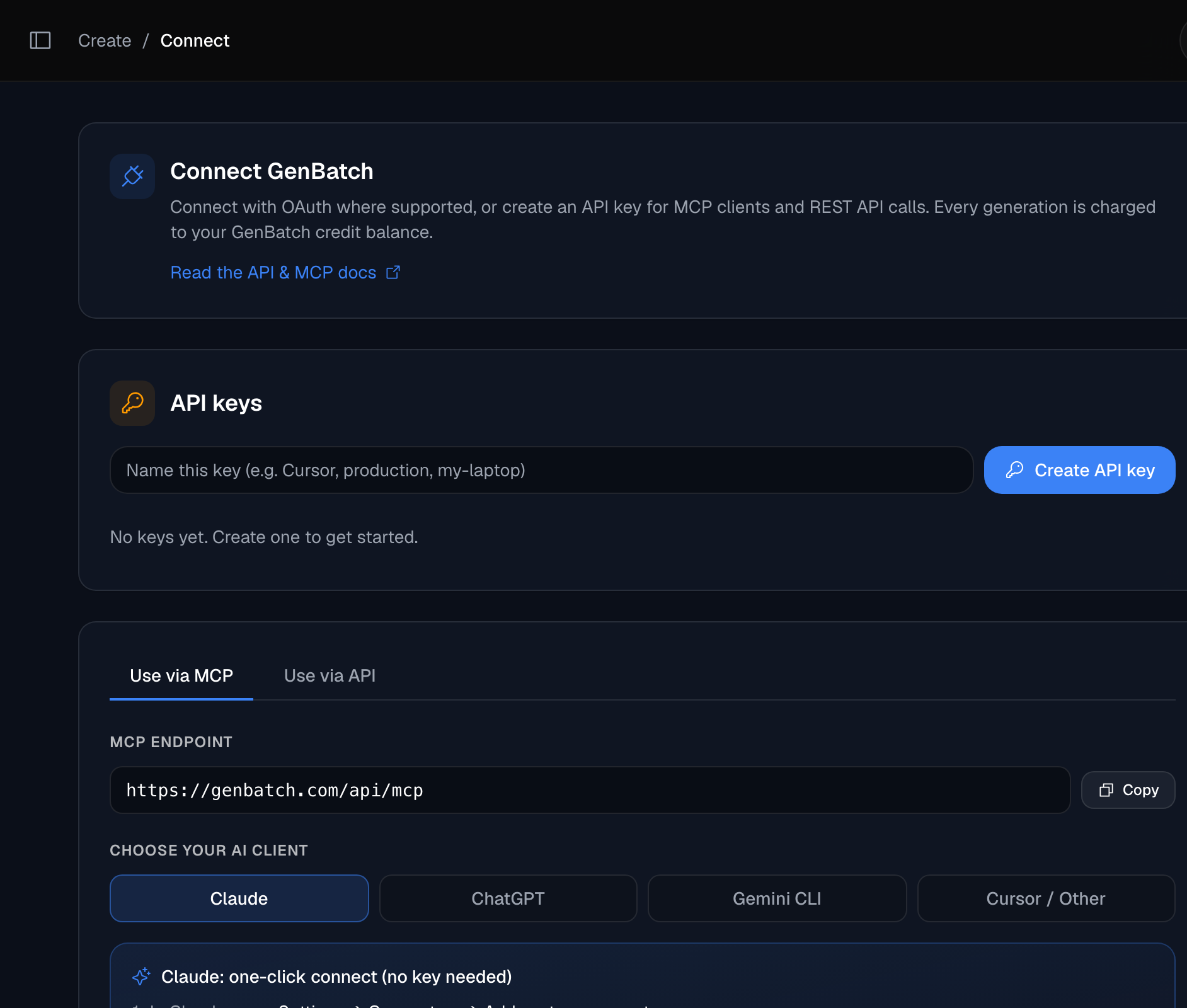
Choose your auth path
In Claude, use the no-key connector flow: paste the MCP endpoint, sign in to GenBatch, and approve access. In ChatGPT, enable developer mode and create a connector with the endpoint. For Gemini CLI, Cursor, the MCP Inspector, custom clients, or the REST API, create an access key at /connect. It is shown once, so copy it somewhere safe.
Add the MCP server or call the API
In Claude, add GenBatch as a custom connector and approve it with your GenBatch login. In ChatGPT, use Settings -> Connectors -> Create and paste the MCP endpoint. In Gemini CLI, run gemini mcp add --transport http --header "Authorization: Bearer gbm_your_key" genbatch https://genbatch.com/api/mcp. In other clients that ask for manual auth, add GenBatch as a remote MCP server and paste your key as the bearer token. Prefer code or an assistant without MCP connector support? Call the REST API directly instead.
Ask or prompt to generate
Tell Claude what you want, for example "generate 4 square product shots of a matte black water bottle" or "turn the first result into a vertical video." Claude calls a generation tool, then polls check_job until the URLs are ready. You can check your remaining balance any time with get_balance.
The MCP flow is asynchronous. generate_image returns a job id right away, then check_job reports the status and returns the finished image URLs once they are ready. Let Claude handle the polling loop for you.
Prefer your own code
If you would rather call GenBatch from a script or backend, the REST API takes the same key. Submit a job, then poll for the result:
curl -X POST https://genbatch.com/api/queue/submit \
  -H "Authorization: Bearer gbm_your_key_here" \
  -H "Content-Type: application/json" \
  -d '{
    "type": "create-image",
    "requestData": {
      "prompt": "a red fox in snow",
      "number_of_images": 1,
      "aspect_ratio": "1:1",
      "image_model": "gpt_image_2",
      "reference_image_url": "https://files.genbatch.com/uploads/reference.png"
    }
  }'
The submit response includes the job id. Poll GET /api/results/<id> until the status is completed, and the image URLs come back in result_data.files[]. For the full endpoint reference, field list, and error codes, see the GenBatch image generation API guide.
Other clients
Claude has the simplest no-key flow: paste the MCP endpoint, sign in to GenBatch, and approve access. ChatGPT uses a developer-mode connector: Settings -> Apps & Connectors -> Advanced settings, enable developer mode, then Settings -> Connectors -> Create. Gemini CLI uses gemini mcp add --transport http with an Authorization: Bearer gbm_your_key header. Cursor, the MCP Inspector, and custom clients can use the same endpoint with a bearer key from /connect.
Connect GenBatch
Generate from Claude, ChatGPT, Gemini CLI, Cursor, MCP clients, or your own code in minutes.
Get started